

Profile & password
Update your details and avatar, change your password.
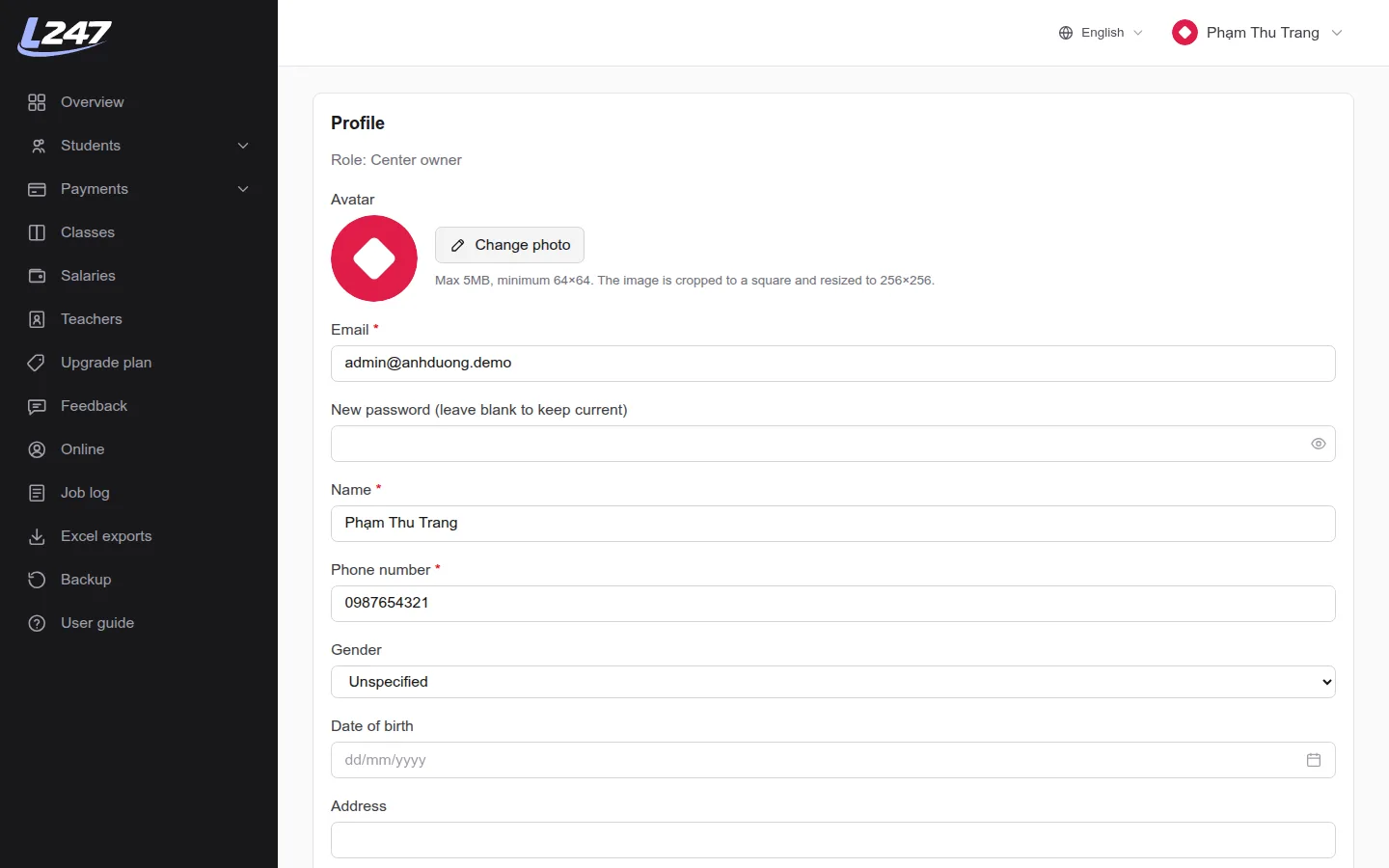
Click your name in the top-right corner → “Profile”. Change your avatar, email, name, phone and other details there. To change your password, type it into the new-password field (at least 8 characters) and save; leave it blank to keep the current one.
Two-step verification
Protect your account with a 6-digit code from your phone, on top of your password.
With two-step verification on, signing in needs your password plus a 6-digit code shown on your phone. Someone who knows your password still can't sign in without your phone. It's optional, but strongly recommended for admin accounts.
Before you start
- Install a free authenticator app on your phone: Google Authenticator, Microsoft Authenticator, Authy or 1Password.
- The app makes codes even when your phone is offline. Lớp 247 never sends SMS or email for this step.
Turn on two-step verification
- Open “Profile”, scroll to the “Two-step verification” card and click “Turn on two-step verification”.
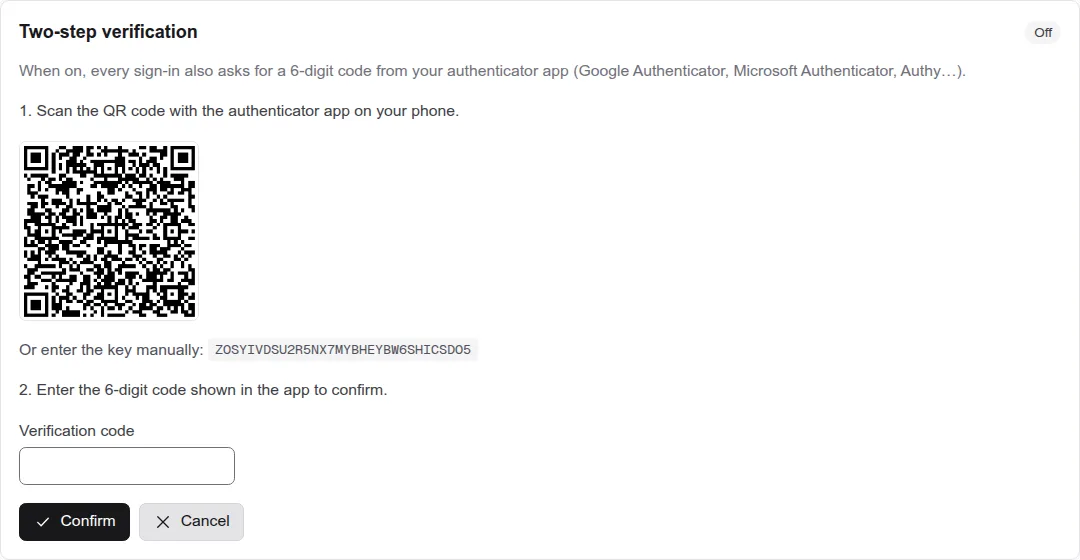
- In your authenticator app, add an account and scan the QR code. If you can't scan it (for example, you're on that same phone), choose manual entry and type the key shown under the QR code.
- Enter the 6-digit code the app shows and click “Confirm”.
- Save the 10 recovery codes that appear: click “Copy” or “Download”, keep them somewhere safe, then click “I've saved them”.
Recovery codes are shown only once. If you lose both your phone and your recovery codes, you won't be able to sign in on your own.
Signing in once it's on
- Enter your email and password as usual.
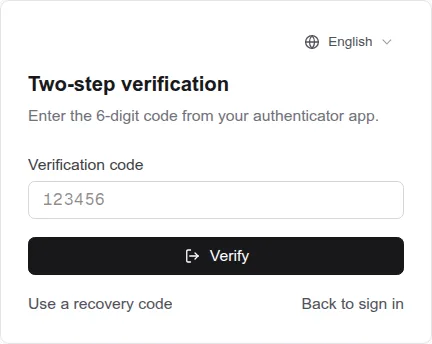
- On the “Two-step verification” screen, open your authenticator app, enter the 6-digit code for Lớp 247 and click “Verify”.
- Codes change every 30 seconds, and each code works only once. If you just used one, wait for the next.
- You have 5 minutes after entering your password to enter the code. After that, click “Back to sign in” and start again.
Don't have your phone?
On the code screen, click “Use a recovery code” and enter one of your saved codes (xxxxx-xxxxx). Each works once; the number left is shown in the “Two-step verification” card. Generate a new set when you're running low.
Regenerate codes / turn off / new phone
- “Regenerate recovery codes”: enter a code from the app → get 10 new codes; all old ones stop working immediately.
- “Turn off two-step verification”: enter your current password and a code from the app (or a recovery code).
- New phone: while you still have the old phone or a recovery code, turn two-step verification off, then on again and scan the new QR code with the new phone.
Troubleshooting
- Codes are always rejected: make sure your phone's clock is set automatically. Codes depend on the exact time.
- Too many wrong codes: the system stops accepting codes for that account for a while (at most 10 wrong codes per hour). Wait, then try again.
- Lost both your phone and your recovery codes: contact the Lớp 247 team to verify your identity and restore access.
Frequently asked questions
Which app does Lớp 247's two-step verification use?
Any standard TOTP authenticator app: Google Authenticator, Microsoft Authenticator, Authy or 1Password. Lớp 247 never sends codes by SMS or email.
I lost my phone — how do I log in?
On the code screen, choose “Use a recovery code” and enter one of the 10 recovery codes you saved when turning on two-step verification. Each code works only once.
Why does my authentication code always fail?
Usually because the phone's clock is off. Turn on automatic date & time on your phone — codes depend on the exact time and change every 30 seconds.