

Backing up data
Create manual or scheduled backups of your center's data.
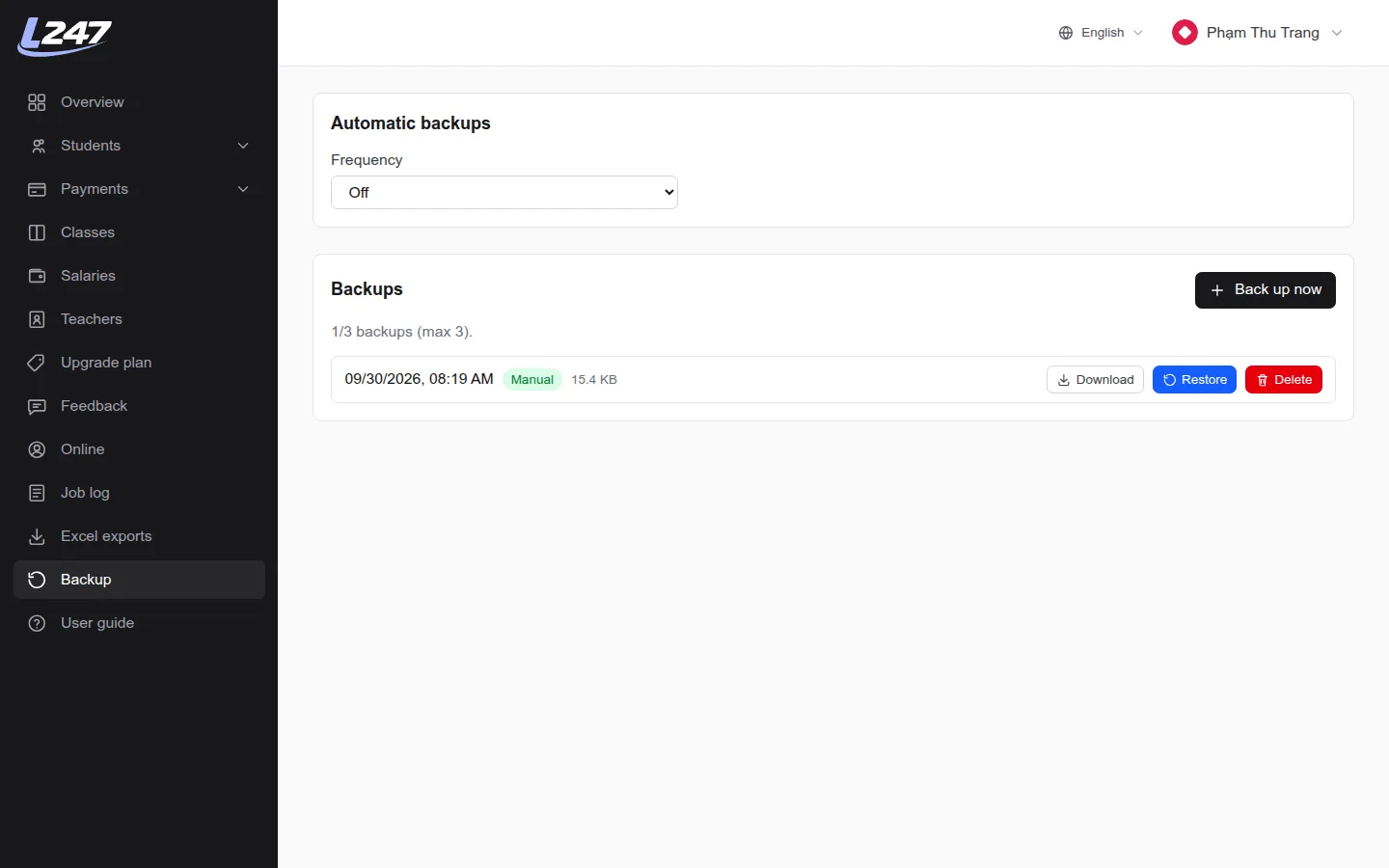
A backup saves all of your center's data as it was at one point in time. If something is deleted or changed by mistake, you can restore from a backup. Manage them under “Backup” in the left menu.
What's included
- Your center's teacher and admin accounts (including encrypted passwords).
- Students, classes, subjects, assistants and class rosters.
- Attendance, scores and remarks.
- Tuition payments and teacher salaries.
Not included
- The center's name, plan and expiry date.
- Job history and exported Excel files.
- Feedback you've sent and payment history.
- Each account's two-step verification settings.
Manual & automatic backups
- Click “Back up now” and wait a few seconds; the new backup appears at the top, labelled “Manual”.
- In the “Automatic backups” card, pick a frequency: Off, Daily, Weekly or Monthly. The system checks every hour and creates at most one backup per day, week or month (Vietnam time), labelled “Auto”.
Up to 3 backups
- Each center keeps at most 3 backups, manual and automatic combined.
- Old backups are never deleted automatically. With 3 already stored, “Back up now” shows a message asking you to delete an old one first.
- With 3 stored, automatic backups also pause until you delete one. If you use automatic backups, keep one slot free.
Download and delete
- “Download” saves the backup to your computer as a .gz file for safekeeping.
- The downloaded file contains account details and student data. Store it carefully and never share it publicly.
- “Delete” permanently removes a backup and can't be undone.
If “Backup” isn't in your menu, the feature is turned off for your center. Contact the Lớp 247 team if you need it turned back on.
Restoring data
Roll your data back to a backup, or restore it as a separate new center.
In the backup list, click “Restore” on the backup you want, then pick one of the two options below. When it finishes, you'll see how many records were restored.
Option 1 – Overwrite the current center
Deletes all of the center's current data and replaces it with the backup's data. To confirm, you must type the center's exact name.
- Everything changed after the backup is lost: students, attendance, payments… added or edited since then.
- Accounts created after the backup are removed. Account passwords go back to what they were at backup time.
- Each person's two-step verification setup stays exactly as it is now.
- The center's name, plan and expiry date don't change.
Overwriting can't be undone. Click “Back up now” first so you have a way back (you'll need a free slot within the 3-backup limit).
Option 2 – Create a new center
Leaves your current center untouched and creates a brand-new center from the backup, with a name you choose. Useful when you only want to look at, or copy back, some old data.
- The new center uses the default plan and doesn't affect your current data.
- Copied accounts are locked and get new emails (name+restored_…@…) so they don't clash with the originals. The list of new emails is shown when the restore finishes.
- To use those accounts, they need to be unlocked and given new passwords. Contact the Lớp 247 team for help.
While a restore is running
Each center runs only one restore at a time. Wait for the current one to finish before starting another. You can also follow its progress in the “Job log”.
Frequently asked questions
How many backups does Lớp 247 keep?
Up to 3 per center, manual and automatic combined. Old backups are never deleted automatically; once you have 3, delete one before creating a new backup.
Can an overwrite restore be undone?
No. Overwriting deletes all current data and replaces it with the backup's data, so create a fresh backup before overwriting.
What data does a backup include?
Teacher and admin accounts, students, classes, subjects, assistants, class rosters, attendance, scores, remarks, tuition and teacher salaries. It does not include the center name, the service plan, exported Excel files or two-step verification settings.
Can backups run automatically?
Yes. Choose a Daily, Weekly or Monthly frequency; the system creates at most one backup per period, on Vietnam time.