

Getting started
Register a new center, log in and the first setup steps.
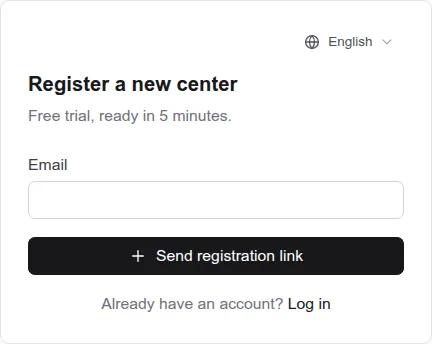
Register a new center
- On the registration page, enter your email and click “Send registration link”.
- Open the “Xác nhận đăng ký Lớp 247” email and click the link (valid for 30 minutes — check your spam folder too).
- Fill in “Center / tutor name”, your name, phone number, address and a password (at least 8 characters), then click “Create account”.
- You're signed in straight away as the “Center owner”.
Logging in
Enter your email, click “Continue”, then enter your password and click “Log in”. If two-step verification is on, you'll also be asked for a 6-digit code (see “Account security”).
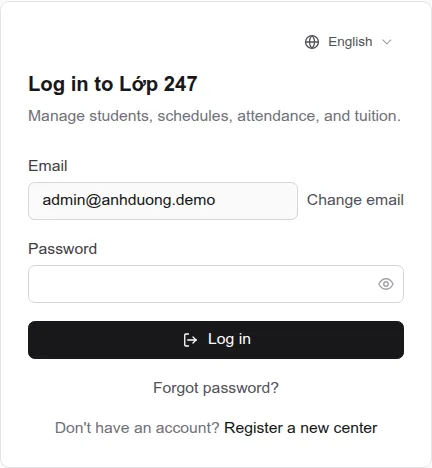
- “Account is locked”: an admin locked the account.
- “Account has expired”: the center's subscription has ended — every account in the center (teachers included) is blocked. Contact the Lớp 247 team to renew.
Recommended setup order
- Create teacher accounts (“Teachers” menu).
- Create classes (“Classes” menu), then open each class to add subjects: assigned teacher, schedule, billing type and price, teacher pay.
- Add students (“Students” menu, or import from Excel) and enroll them in classes.
- Every day: take attendance. At month end: check tuition and salaries (the system can generate them automatically).
The interface language (Tiếng Việt / English) is in the top-right corner and is saved to your account.
Overview
Students, classes, teachers, revenue, outstanding tuition and salaries at a glance.
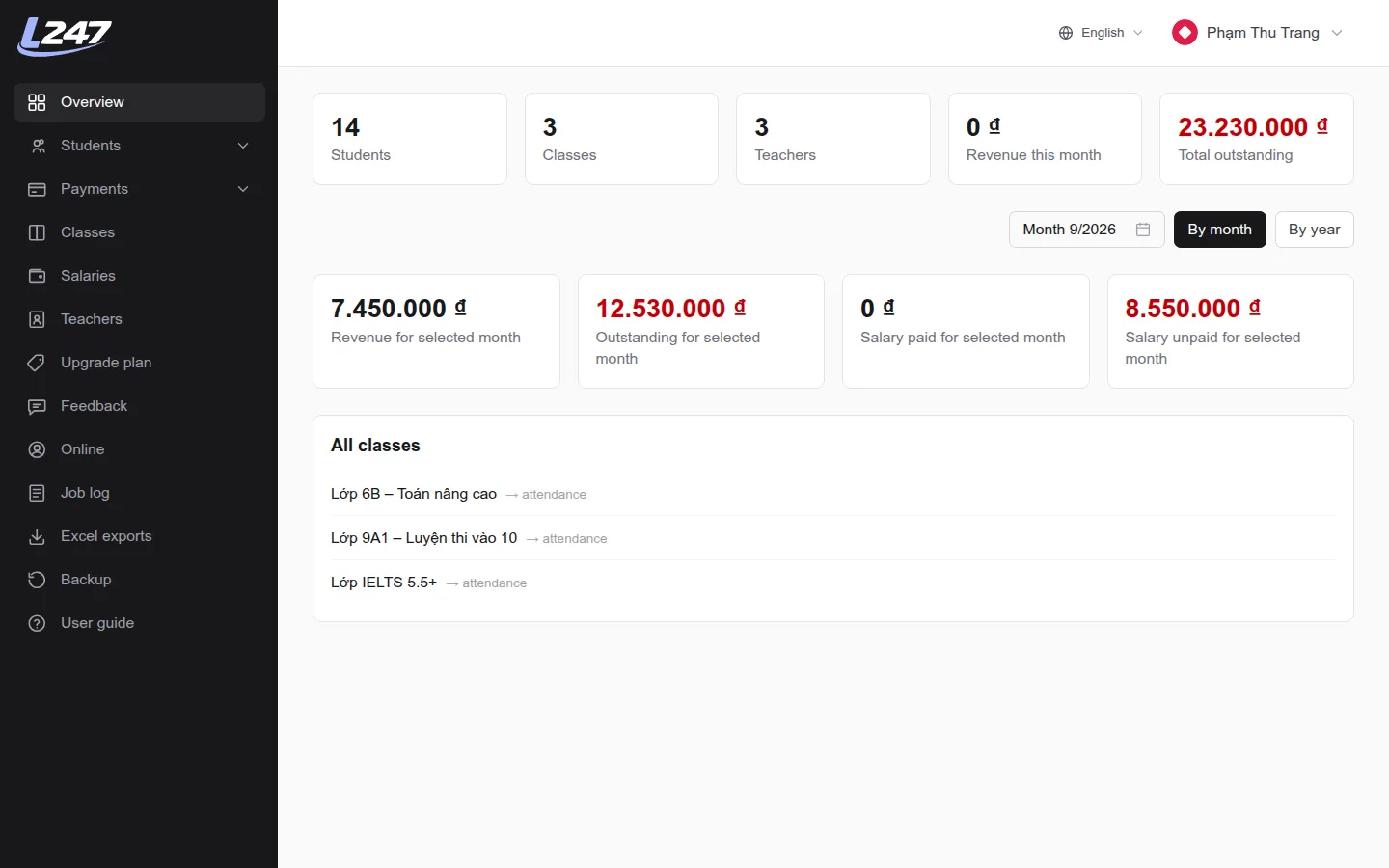
- Top row: number of students, classes and teachers; “Revenue this month” (payments marked paid with a payment date this month) and “Total outstanding” (all unpaid payments).
- Pick a month to see that month's revenue, outstanding tuition, paid salaries and unpaid salaries.
- Switch to “By year” for 4 bar charts, one bar per month.
- “All classes”: click a class name to jump into attendance.
Teacher accounts
Create, edit and lock accounts for teachers and assistants.
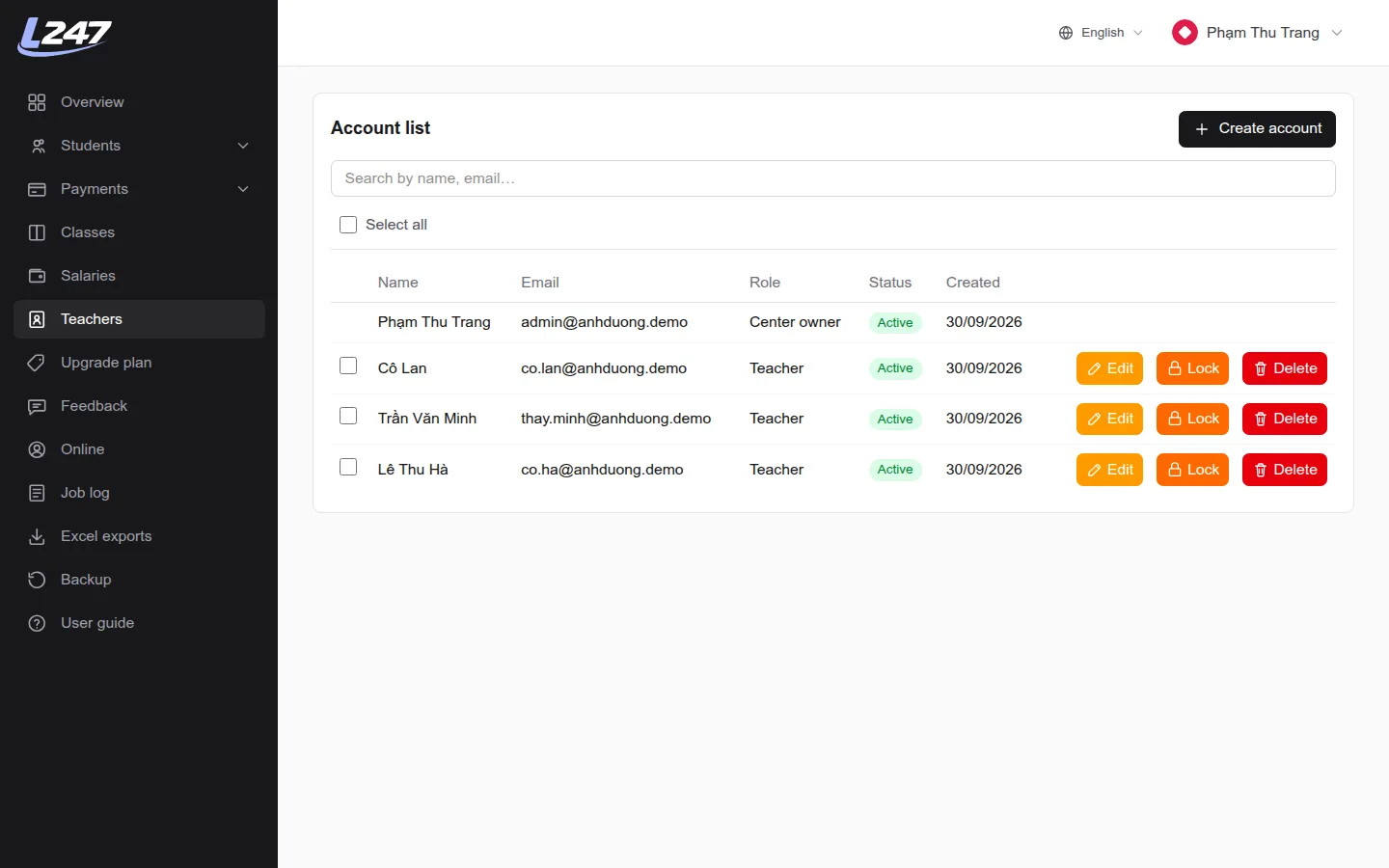
- Open the “Teachers” menu and click “Create account”.
- Enter an email (unique across the whole system), a password (at least 8 characters), a name and a phone number. Address and description are optional.
- Keep “Email the login details (email, password) to this account” ticked if you want the system to email them to the teacher.
- Save. The teacher signs in with that email and password, and should change the password under “Profile”.
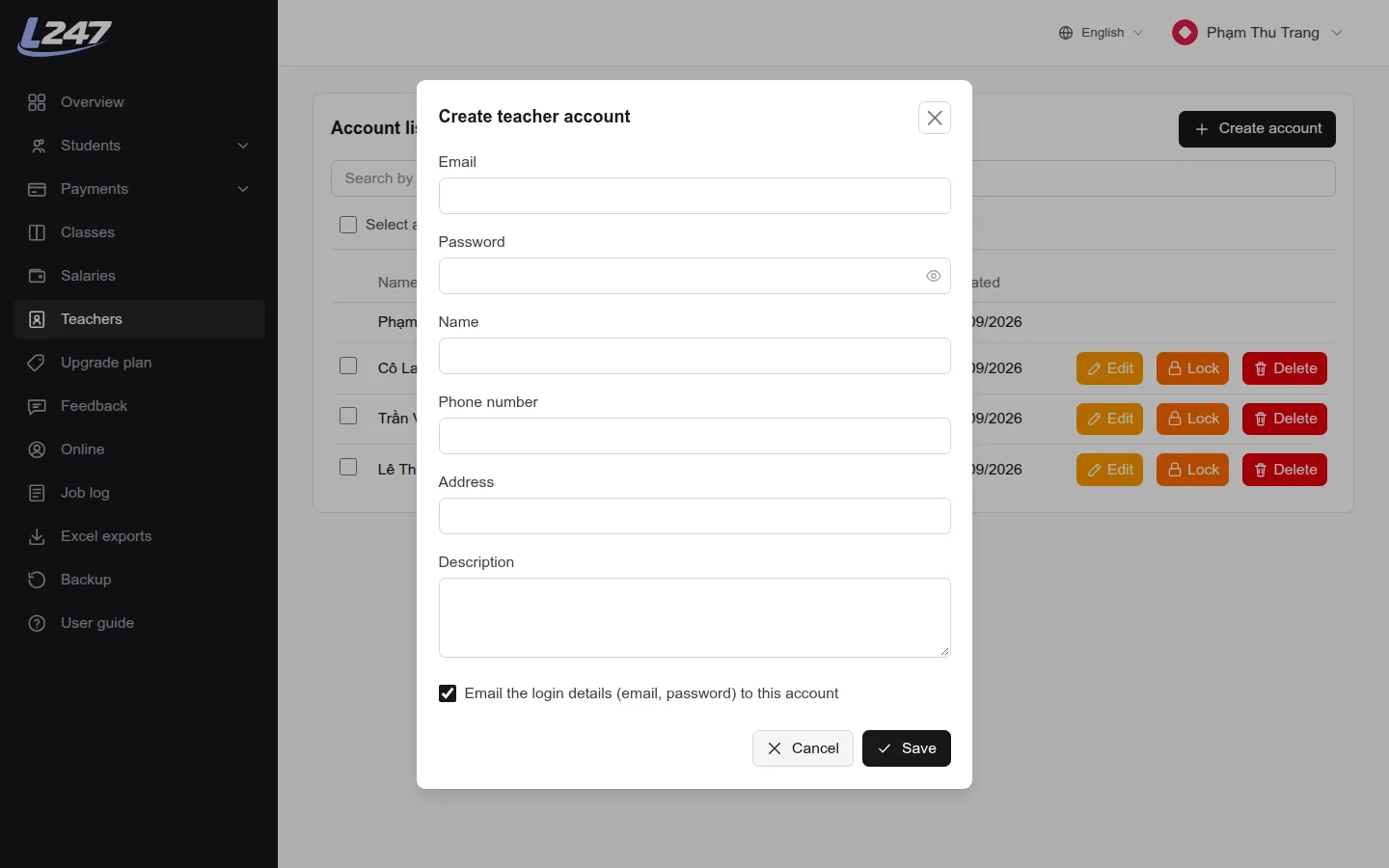
- “Edit”: change details; leave the new-password field blank to keep the current password.
- “Lock” / “Unlock”: a locked account can't sign in.
- “Delete”: hides the account from the list. You can't lock or delete your own account.
- The maximum number of teachers depends on your plan.
Creating an account isn't enough for a teacher to see a class: assign them to one of the class's subjects (“Assigned teacher”) or add them as an assistant — see “Classes & subjects”. The center owner account can't be picked as a subject's teacher; if you both manage and teach, create a separate teacher account (different email) for yourself.
Classes & subjects
Create classes, add subjects, assign teachers, schedules, tuition and pay.
Each class has one or more subjects. The teacher, schedule, tuition and pay are set per subject. For example “Lớp 9A1” has Math, Literature and English taught by 3 different teachers.
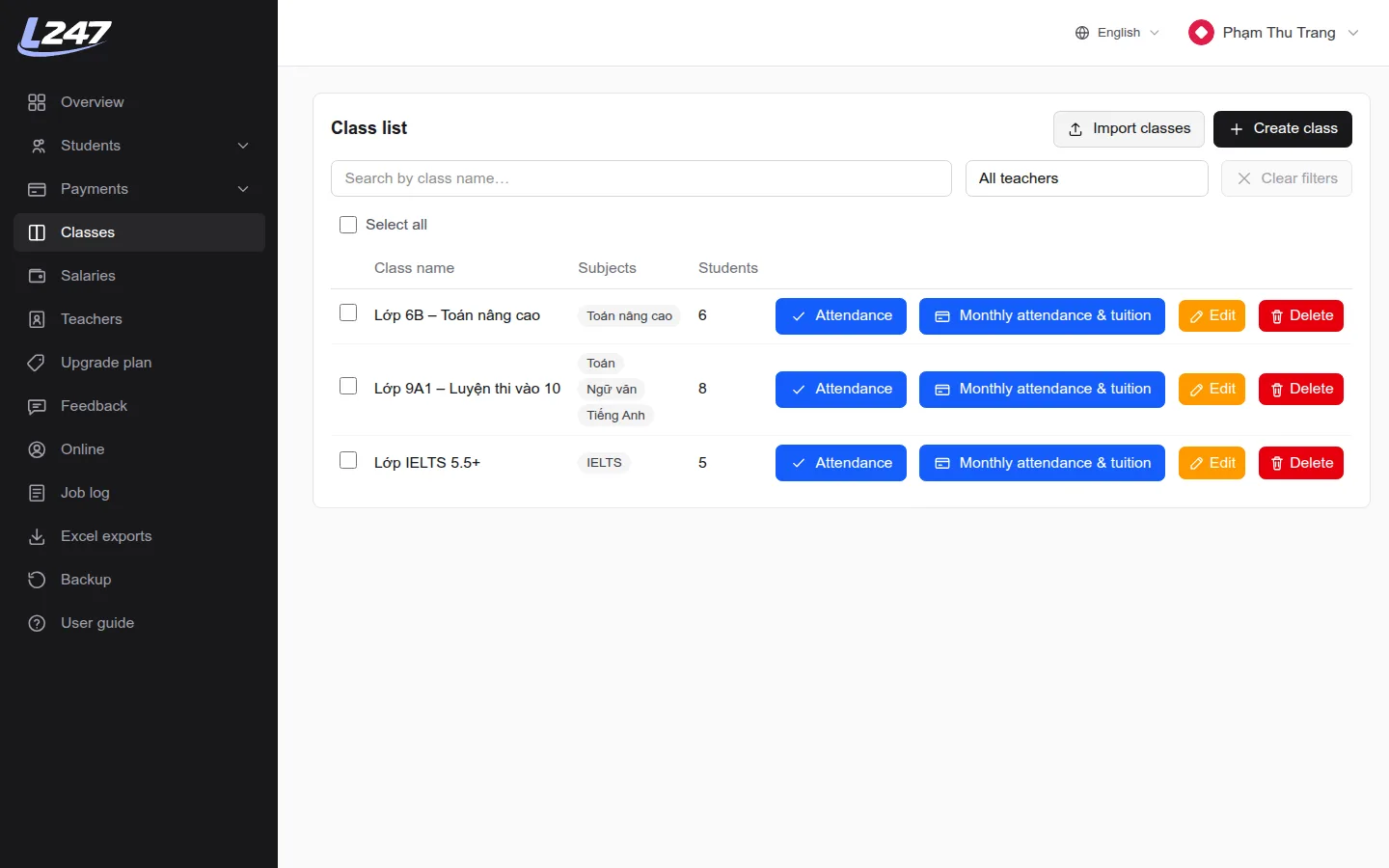
Create a class
“Classes” menu → “Create class” → enter the class name. You can create many classes at once with “Import classes” from Excel (class name, teacher email, billing type, price) — imported classes have no schedule yet, so open each one to add it.
Add a subject
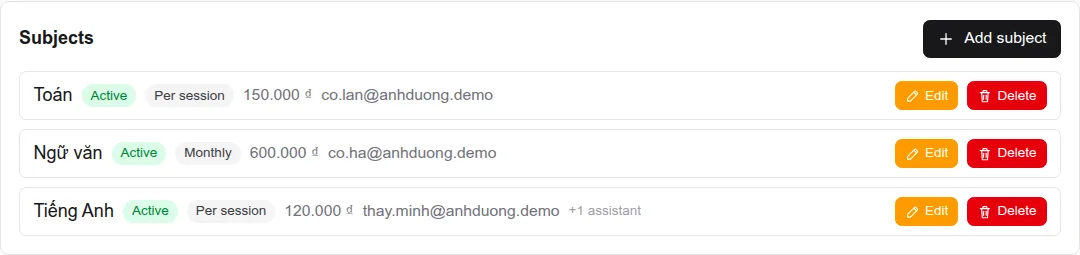
- In the class, click “Add subject” on the subjects card (or “Edit” an existing one).
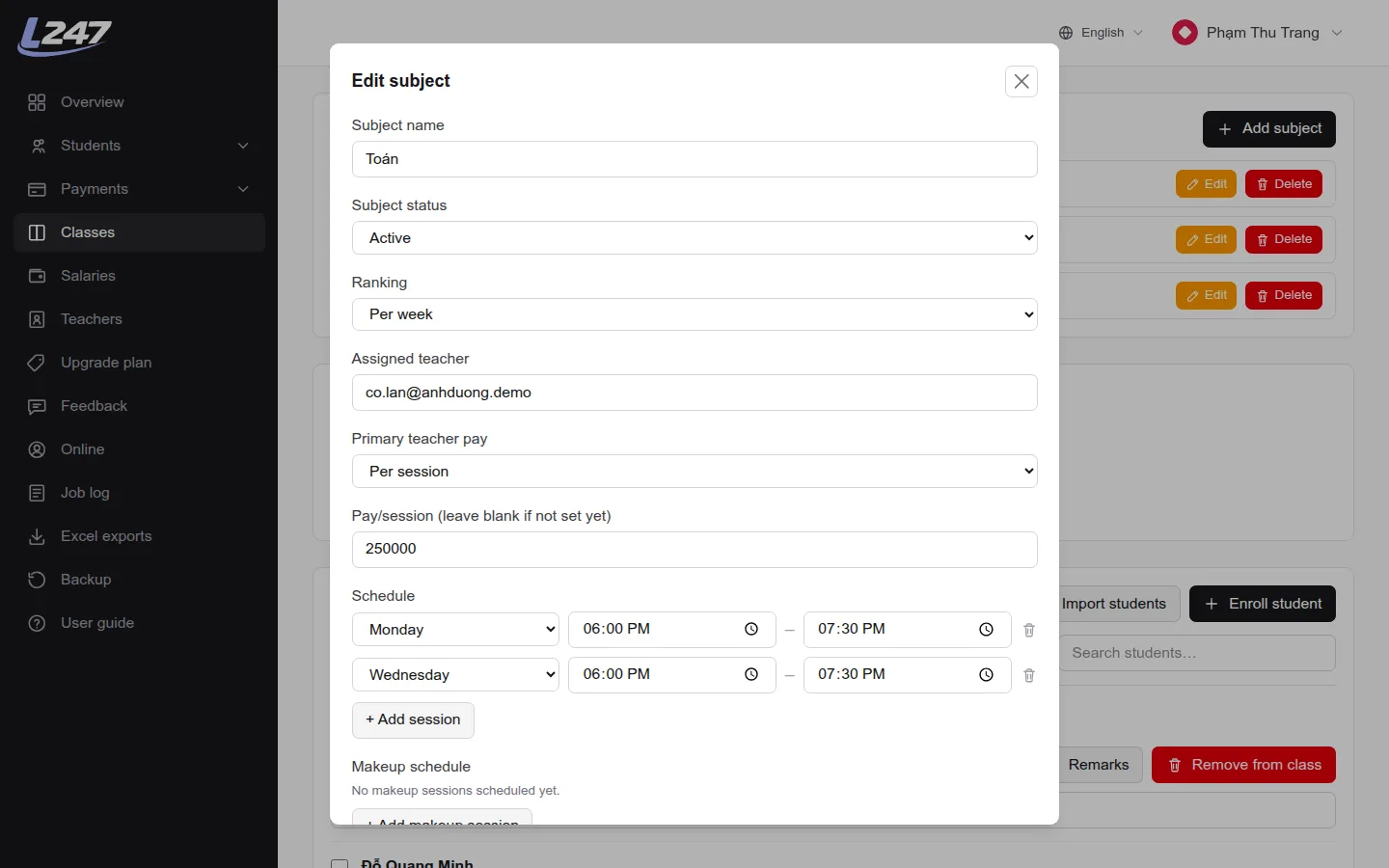
- Enter the subject name and choose the “Assigned teacher”.
- “Primary teacher pay”: No pay / Per session (enter a rate per session) / Monthly (amount entered on the Salaries page).
- “Schedule”: add each weekly session (weekday, start time, end time). Attendance can only be taken on scheduled days.
- “Makeup schedule”: add a one-off catch-up session on a specific date.
- “Billing type”: Per session (charged by attended sessions) / Monthly (fixed fee) / Full course (charged once at enrollment), plus the price.
- “Ranking”: turn it on to score and rank students per session, week or month.
Assistant teachers
In the class's “Assistant teachers” card, click “Add assistant”, pick a teacher and how the assistant is paid. Assistants can view and take attendance for that subject just like the assigned teacher.

- A subject set to “Stopped” is locked: no more attendance, scores or tuition. Edit it and set it back to “Active” to reopen it.
- Deleting a class or subject only hides it; attendance history is kept.
- The maximum number of classes depends on your plan.
Students & enrollment
Add students, import from Excel and enroll them in classes.
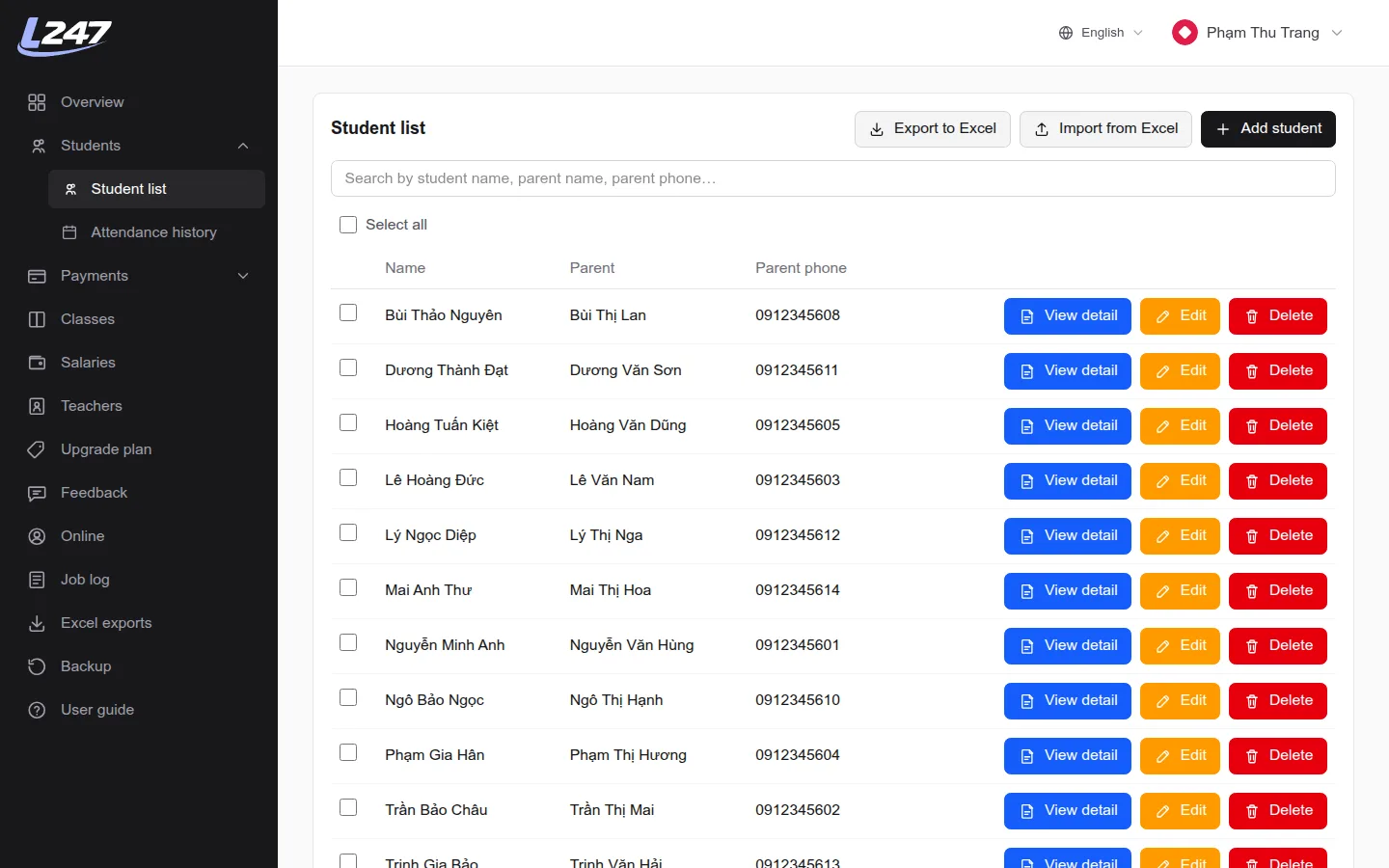
- “Add student”: student name (required), parent name and phone, address.
- Search by student name, parent name or parent phone.
- “View detail”: details, enrolled classes, attendance history and tuition for that student.
- Select several students to delete them at once. Deleted students are only hidden.
Import students from Excel
- Click “Import from Excel” → “Download template”.
- Fill in the template: “Name” is required; parent, parent phone and address are optional. Up to 500 rows per file.
- Drop the file in, review the valid rows and errors, then click import.
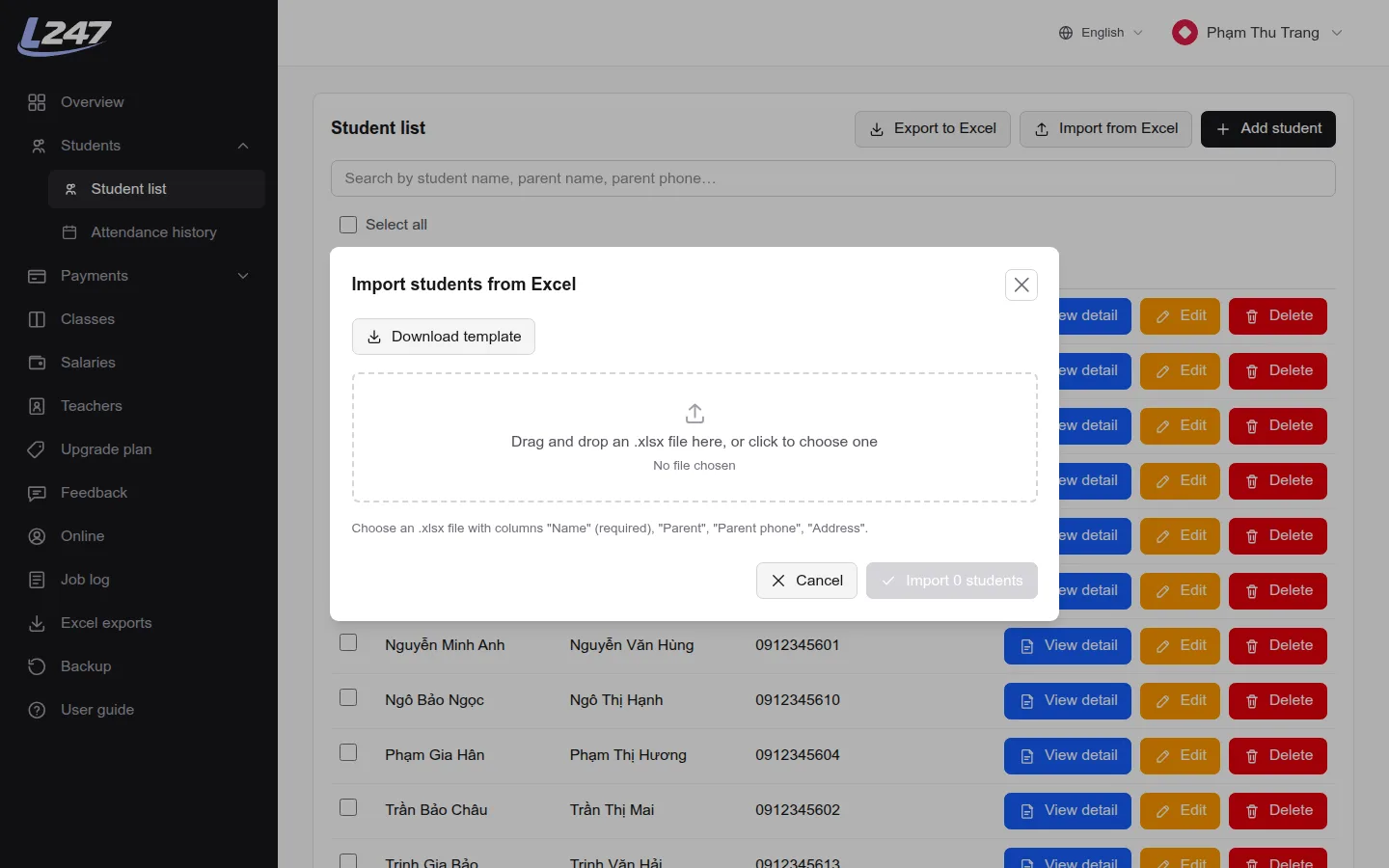
When importing, a name that matches an existing student is skipped. If two students share a name, add a nickname to tell them apart (e.g. “Nguyễn Minh Anh (grade 6)”).
Enroll in a class
- Open the class → “Student list” card → “Enroll student”.
- Pick the student and click “Enroll”. The dialog shows each subject's billing type and price so you can check them.
- To enroll many at once, use “Import students” (Excel): existing names are enrolled, new names are created.
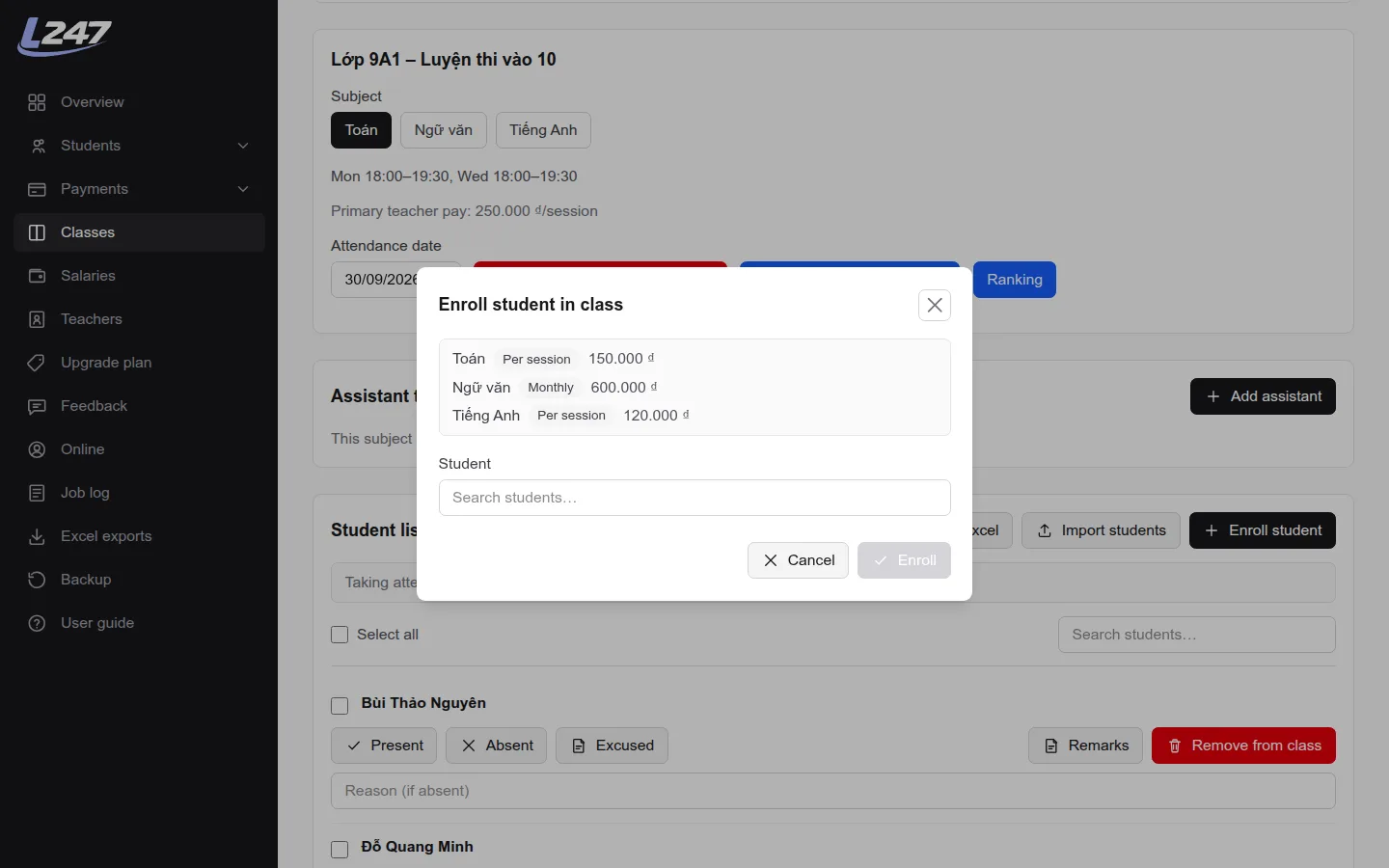
- “Full course” subjects: enrolling immediately creates an unpaid full-course payment. A full-course subject without a price blocks enrollment.
- “Remove from class”: the student leaves the class; old attendance is kept.
Attendance
Per-session attendance, whole-class cancellations, makeups and remarks.
- Open the class (or click attendance from the class list).
- If the class has several subjects, pick the one you're marking.
- Choose the “Attendance date” (today by default). Unscheduled days can't be picked. If a day has several sessions, also pick the “Session”.
- For each student click “Present”, “Absent” or “Excused”, optionally with a reason. Click “Clear attendance” to remove a mark.
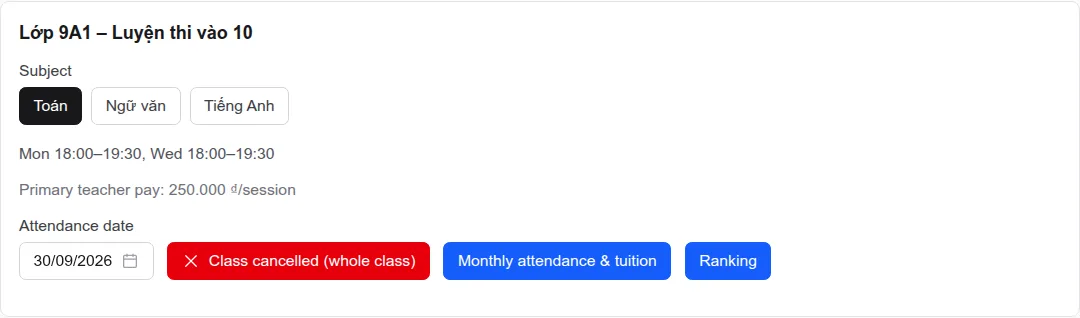
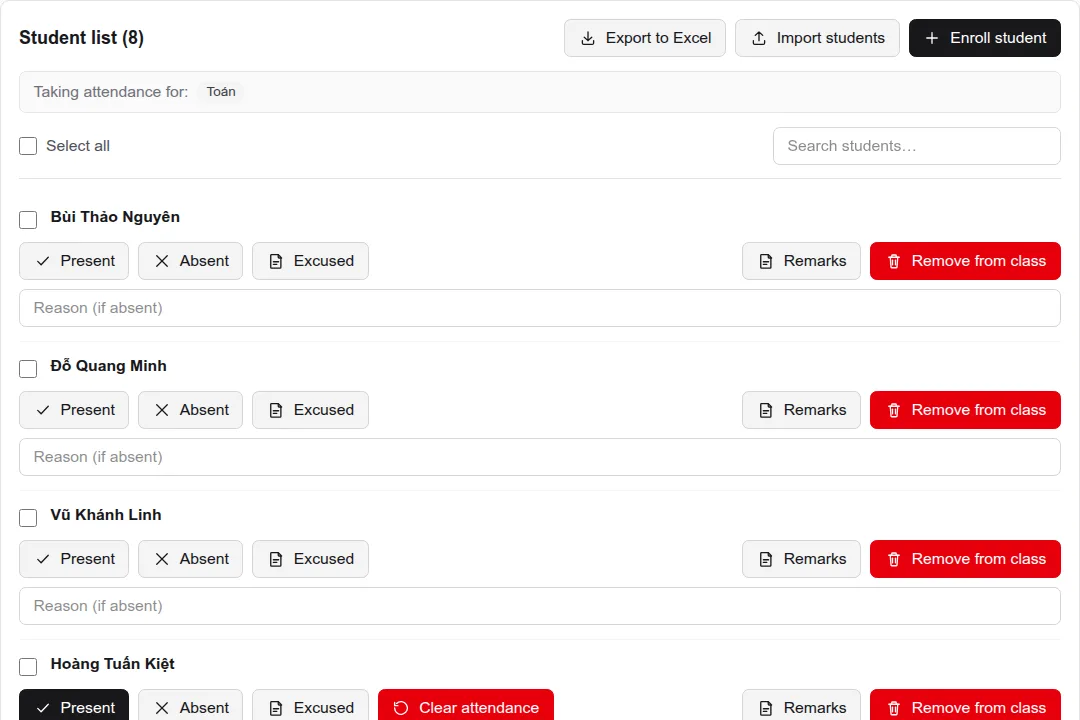
- “Class cancelled (whole class)”: marks the whole class off for that session (e.g. teacher is sick). Cancelled sessions aren't billed and aren't paid.
- Makeup sessions: add the date to the “Makeup schedule” when editing the subject. When marking a makeup, you can link it to a session the student missed.
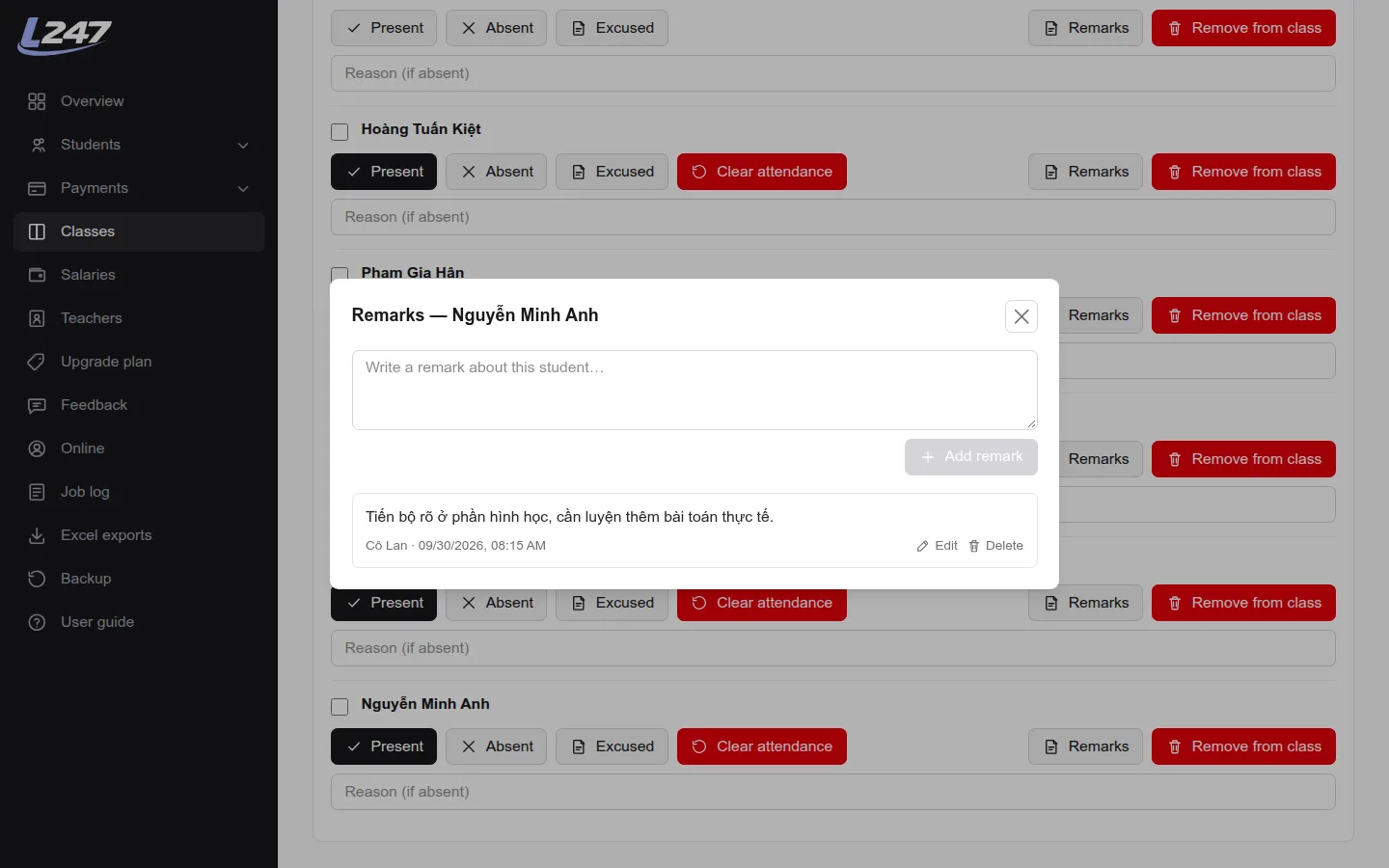
- “Remarks”: write notes about a student; the class's teachers can see and add them too.
- Marking the same date and session again overwrites the earlier record.
See all history under “Students” → “Attendance history”, filtered by month, student, class and status.
Tuition & outstanding payments
Generate monthly tuition, mark payments paid and track what's owed.
How tuition is calculated
- Each student gets one payment per class per month, combining all of the class's subjects.
- “Per session” subjects: number of “Present” sessions × price per session. Absent, excused and cancelled sessions aren't charged.
- “Monthly” subjects: a fixed fee for every enrolled student.
- “Full course” subjects: charged once at enrollment, never monthly.
- Automatic: at the start of each month the system creates tuition for monthly subjects; per-session subjects are billed for the previous month once it has ended. A month where someone has already paid is never regenerated. Automatic runs appear in the “Job log”.
Monthly attendance & tuition
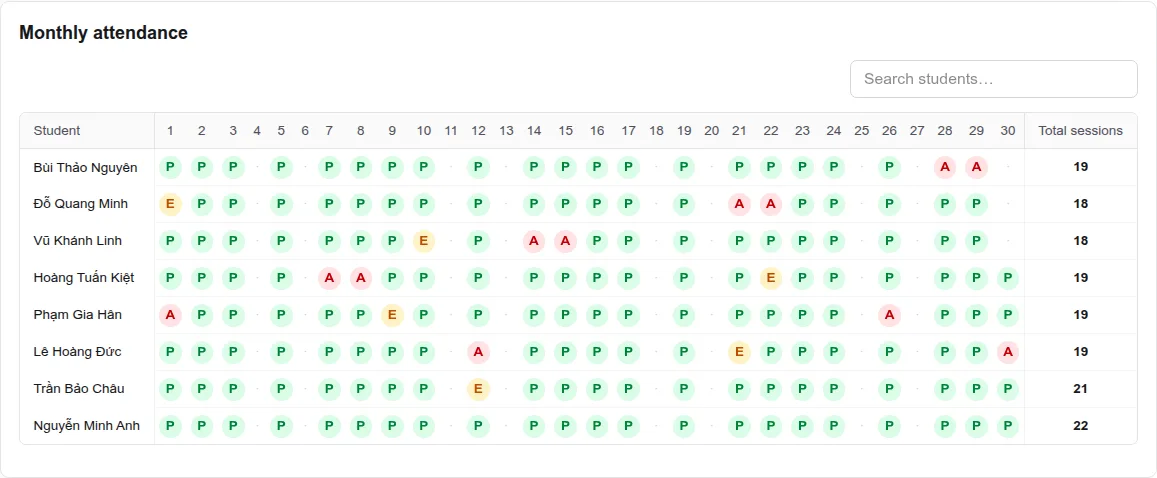
In the class, click “Monthly attendance & tuition”. Pick a month to see the attendance grid (C = Present, V = Absent, P = Excused, N = Cancelled) and that month's tuition list.
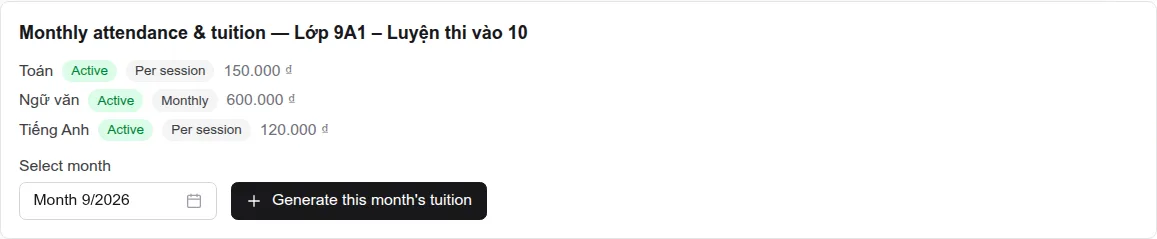
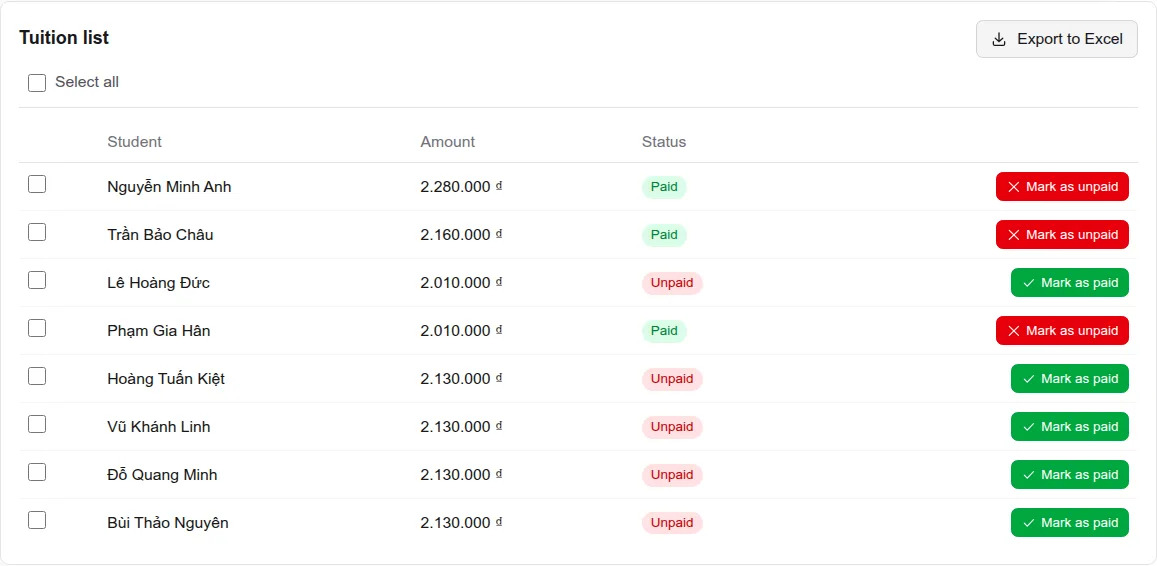
- “Generate this month's tuition”: creates (or recreates) tuition for the selected month. Recreating replaces unpaid rows with the latest numbers.
- Once any student has paid for a month, that month can't be regenerated — finish attendance before collecting.
- “Mark as paid” / “Mark as unpaid”: you can always switch back if you click the wrong one. Select several rows to change them together.
- “Export to Excel”: exports the month's tuition list.
Payment list & debts
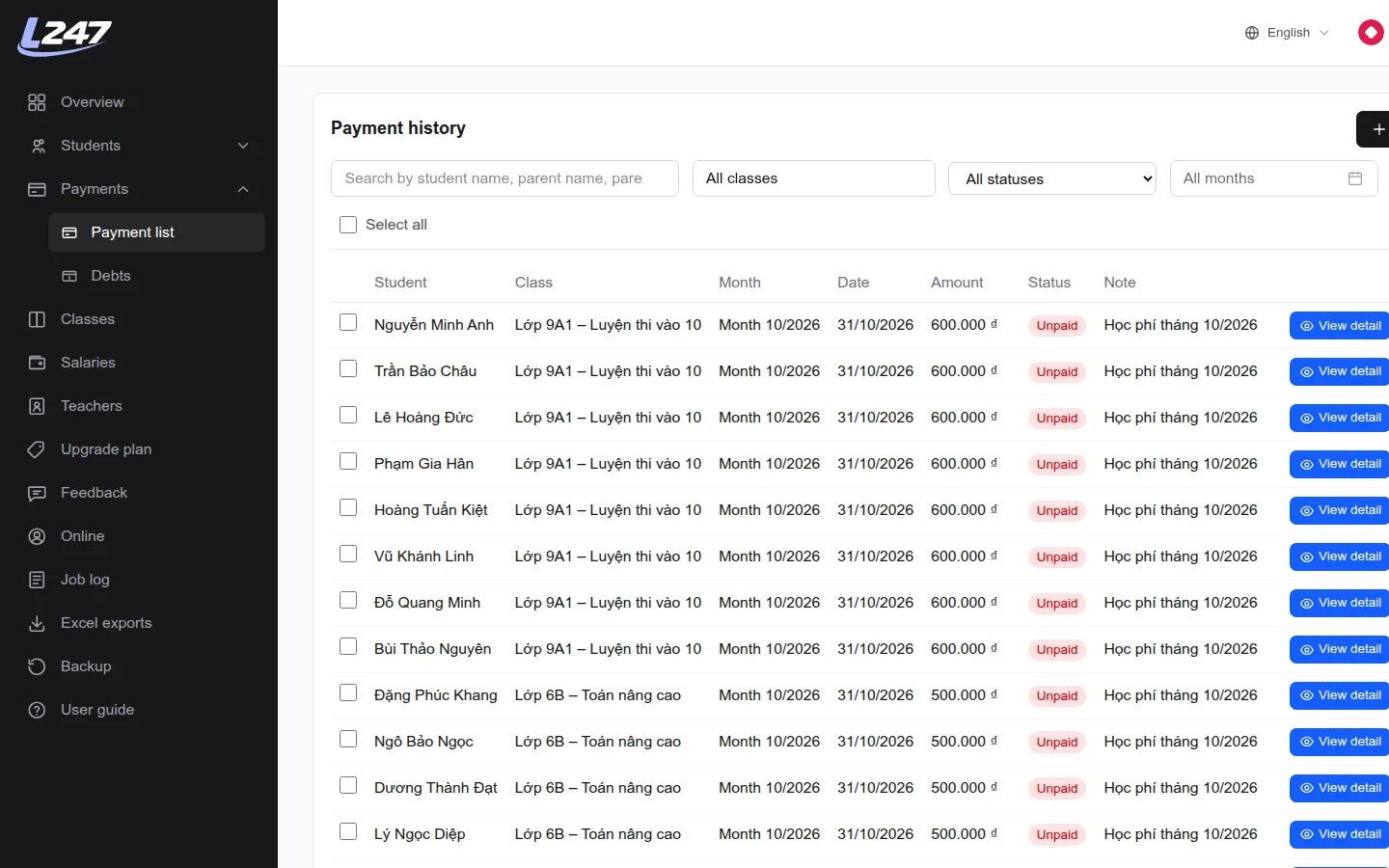
- “Payments” → “Payment list”: every payment, filtered by class, status, month or searched by student / parent.
- “Record payment”: enter a payment by hand (e.g. for materials). Manual payments are saved as paid and aren't linked to a class.
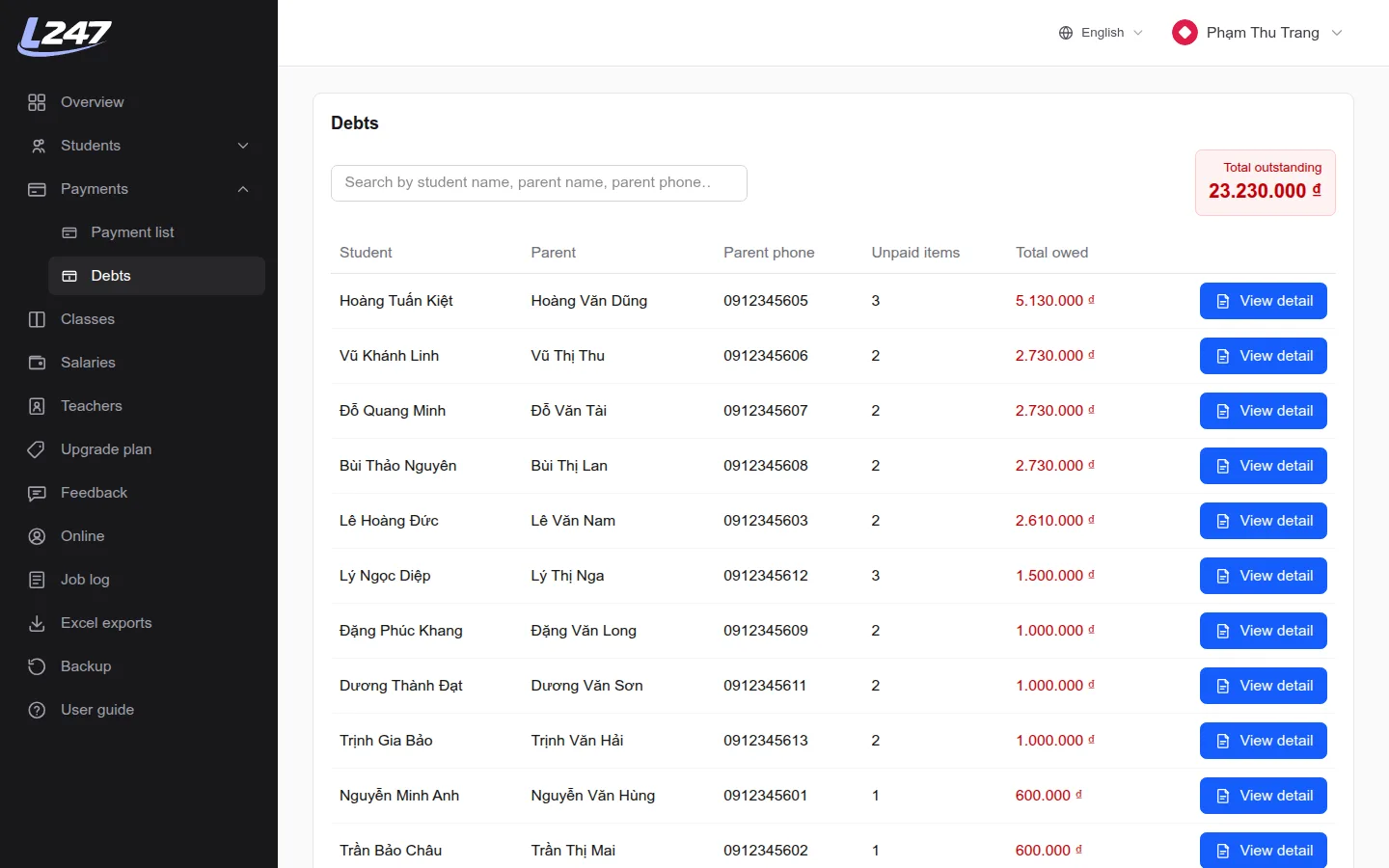
- “Payments” → “Debts”: each student's unpaid total, with the parent's phone number for follow-up.
Teacher salaries
Per-session pay, fixed salaries and marking salaries paid.
How pay is calculated
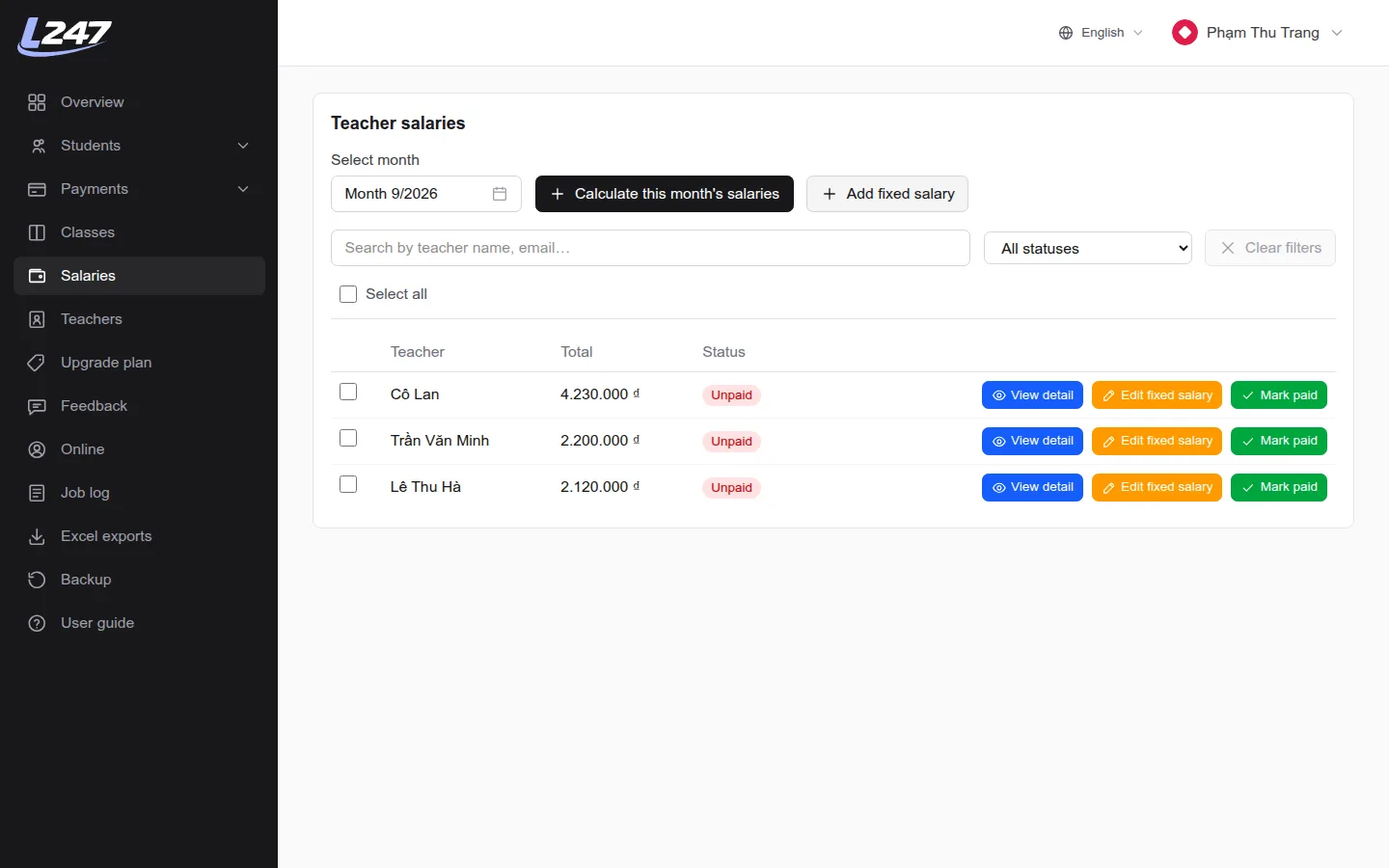
- Total = fixed salary (entered by hand) + per-session pay for every subject the teacher teaches or assists.
- Per-session pay = sessions taught × rate. A session counts when attendance was taken (present, absent or excused), whatever the turnout. “Class cancelled” sessions don't count.
- Subjects paid “Monthly”: enter the amount with “Add fixed salary”.
- At the start of each month the system calculates the month that just ended.
- Pick a month and click “Calculate this month's salaries” (safe to repeat; salaries already paid are left alone).
- Click “View detail” for the per-subject breakdown: role, sessions, rate, amount.
- After paying, click “Mark paid”. Paid salaries aren't changed by recalculation.
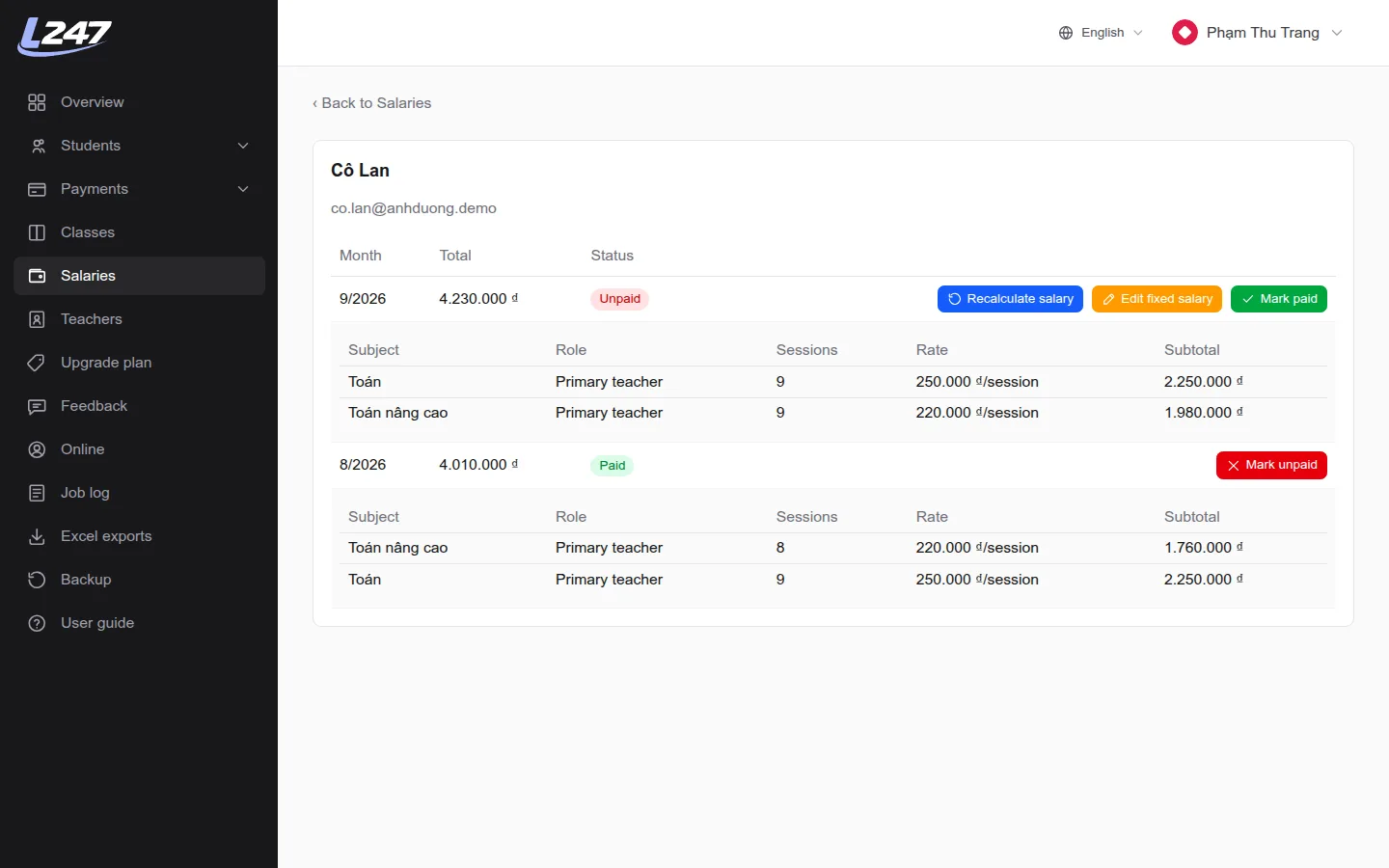
Teachers can't see the salaries page. Share the breakdown with them if needed.
Ranking & scores
Score and rank students per session, week or month.
- Turn ranking on for a subject: edit the subject → “Ranking” → per session / per week / per month.
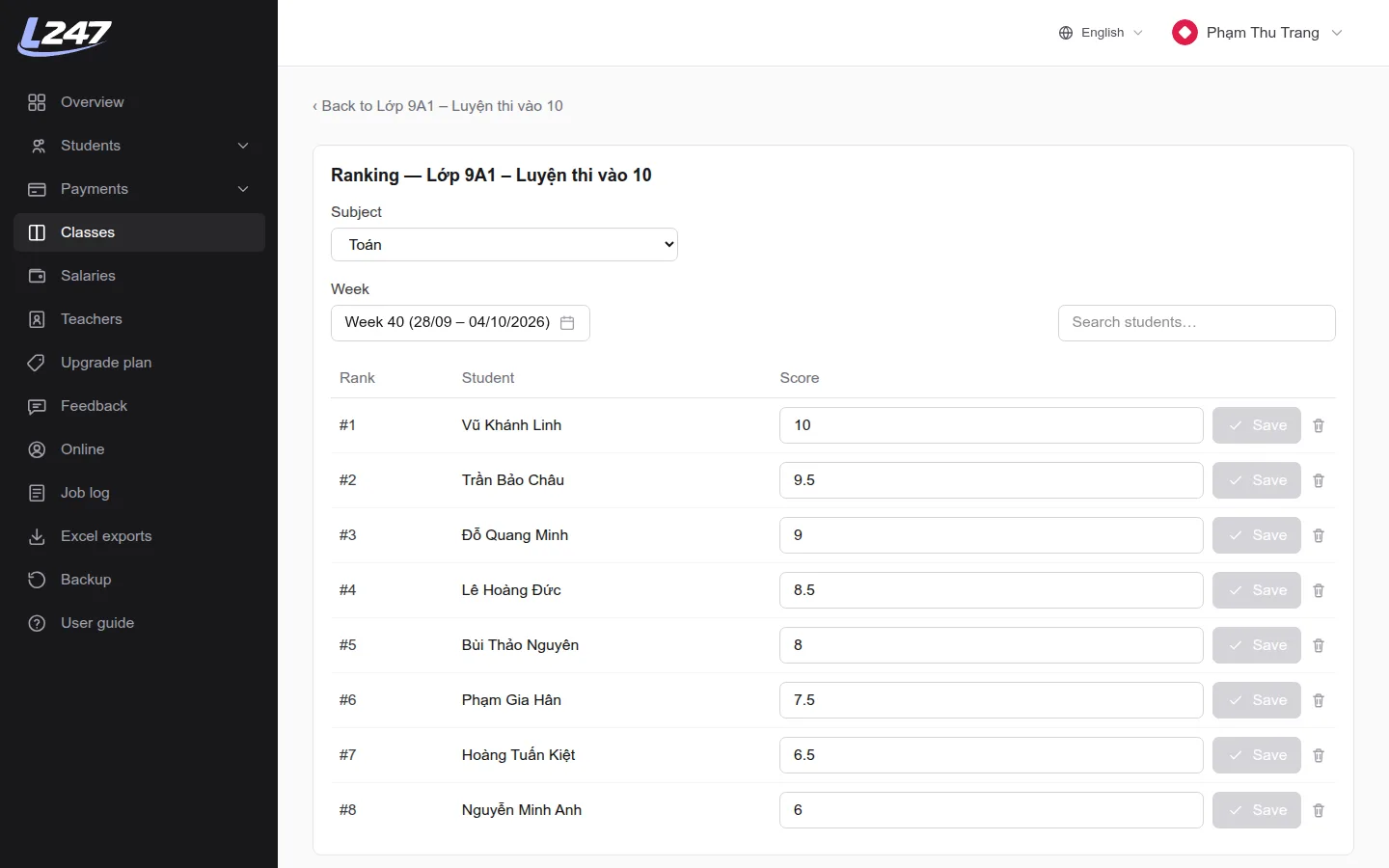
- In the class, click “Ranking”, then pick the subject and period (date, week or month).
- Enter a score from 0 to 10 for each student and click “Save”. The table sorts by score; equal scores share a rank.
Excel exports & job log
Download exported files and follow background jobs.
“Export to Excel” buttons are on the student list, a class's student list and the monthly tuition list. Files are built in the background and appear under the “Excel exports” menu.
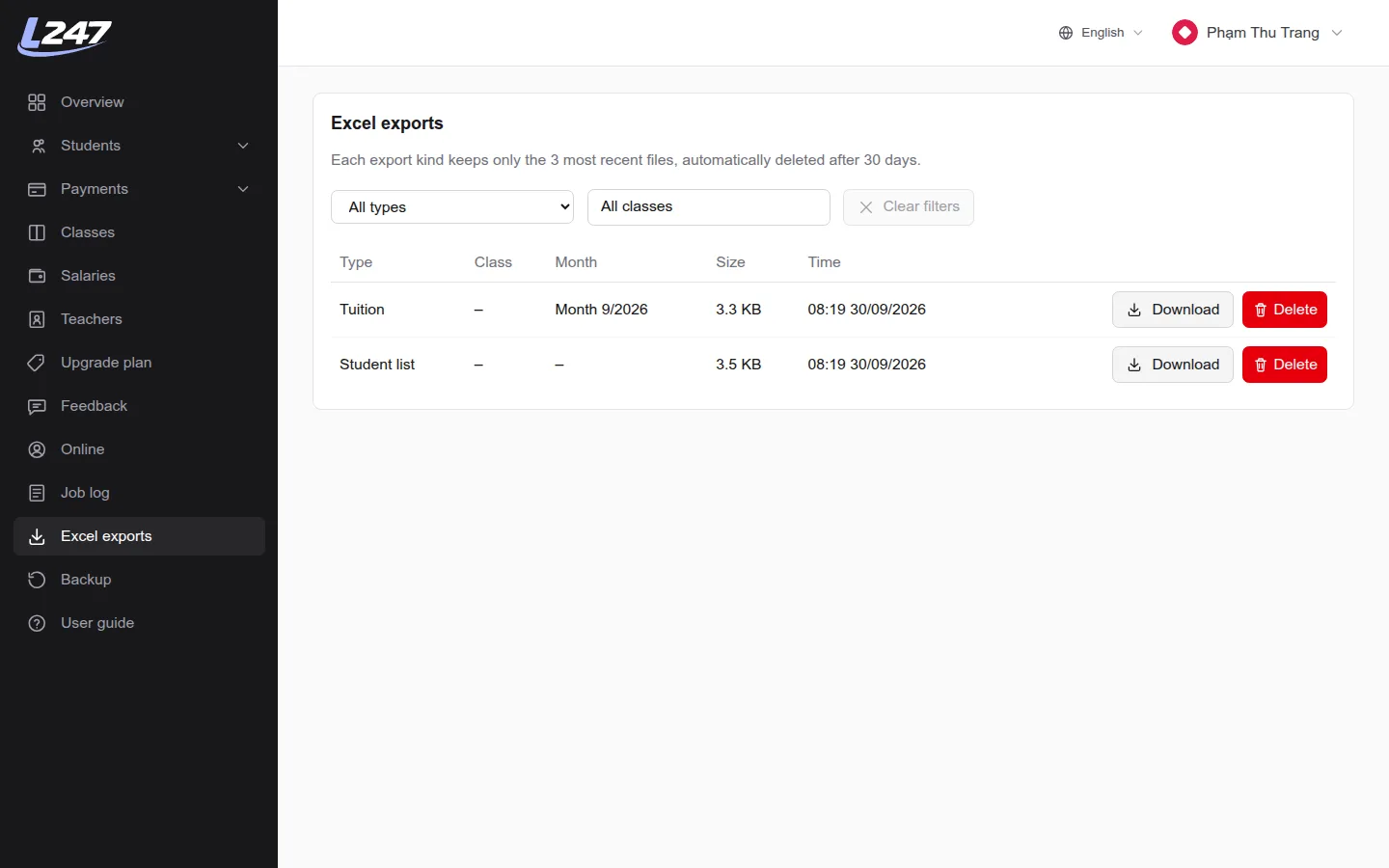
- Only the 3 newest files of each type are kept, and files are deleted after 30 days — download anything you need to keep.
- Excel import / export depends on your plan.
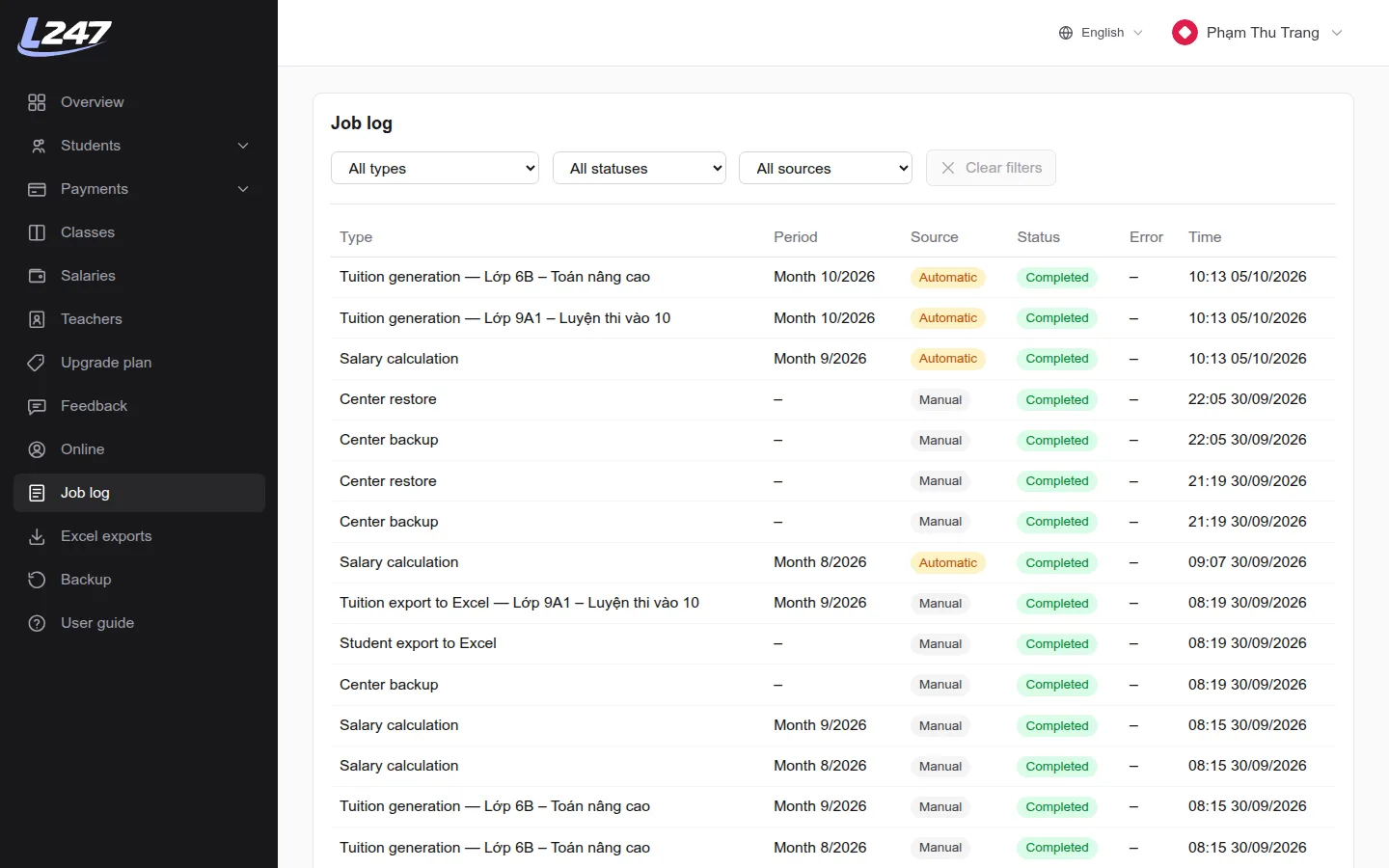
The “Job log” lists background jobs — salary calculation, tuition generation, Excel import / export, backups… — with status Pending, Processing, Completed or Failed. Click an error to see its details.
Feedback
Send suggestions, bug reports or questions to the Lớp 247 team.
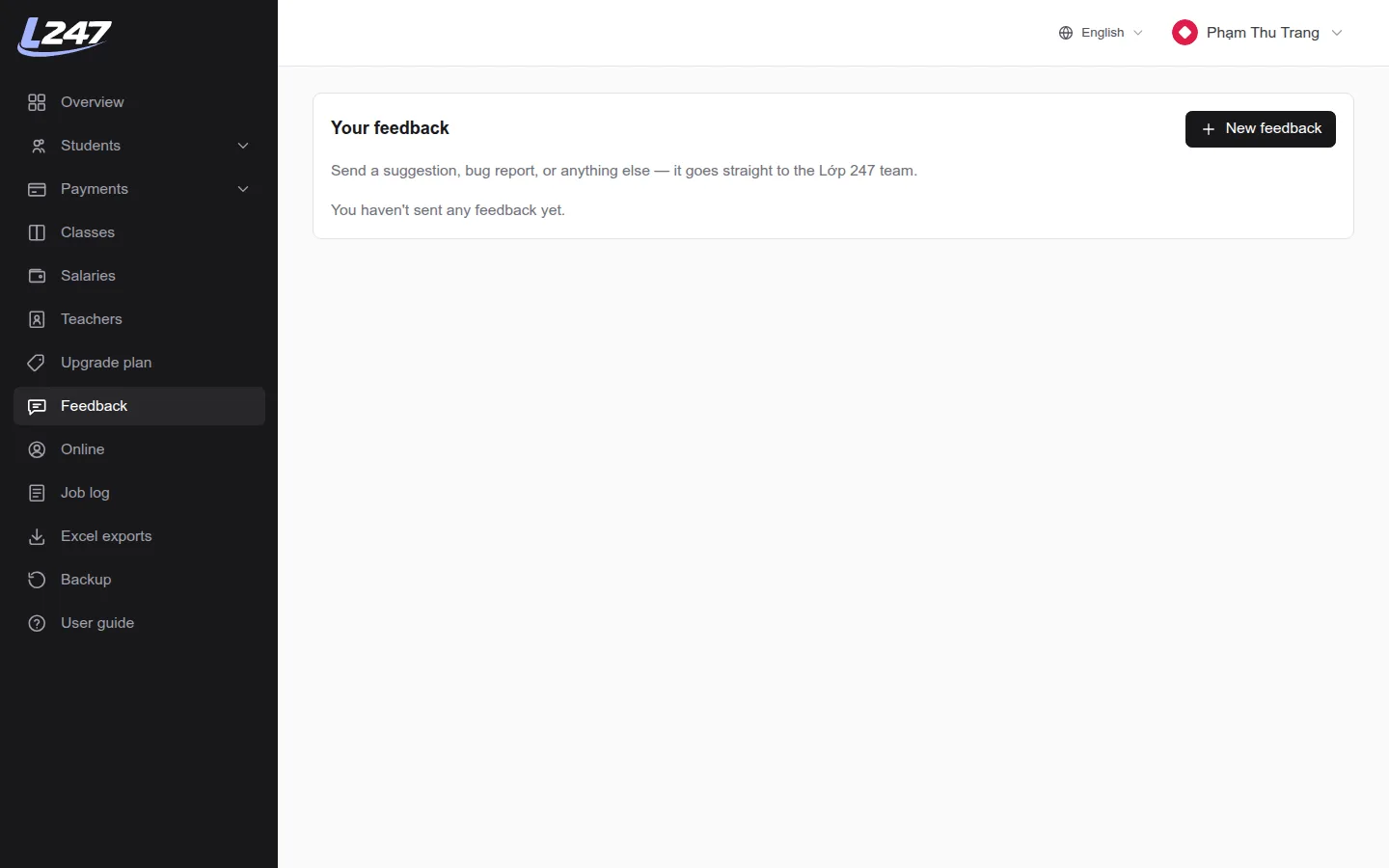
“Feedback”: send suggestions, bug reports or questions (with a file up to 5MB) to the Lớp 247 team and review what you've sent.
Deleted students, classes and accounts can't be restored by the center itself. If something was deleted by mistake, contact the Lớp 247 team via “Feedback”, or restore from a backup (see “Data backup”).
Frequently asked questions
How does Lớp 247 calculate tuition?
Each student has one tuition item per month for each class. Per-session subjects are charged as sessions attended times the price per session (absences, excused absences and class cancellations are free); monthly subjects are a fixed fee; full-course subjects are charged once at enrollment.
How are teacher salaries calculated?
Total salary is the manually entered fixed salary plus per-session pay: the number of sessions taught times the rate of each subject the teacher teaches as assigned teacher or assistant. A session counts once attendance has been taken; whole-class cancellations don't count. The system calculates last month's salaries automatically at the start of each new month.
How do teachers see the classes they teach?
Create a teacher account from the “Teachers” menu, then open the class and pick that teacher as the subject's “Assigned teacher”, or add them as an assistant.
Can I import a student list from Excel?
Yes. In the student list, click “Import from Excel”, download the template, fill in student names (required) and parent details, then upload the file. Up to 500 rows per import; names that match an existing student are skipped.
I marked tuition as “Paid” by mistake — how do I fix it?
Click “Mark as unpaid” on that item. Paid / unpaid can always be switched back and forth, including when several rows are selected at once.